PuppyTigerStudio

PuppyTigerStudio 공식 홈페이지
TesMirror User Guide
| English | 한국어 |
Have you ever wanted to view your smartphone screen on Tesla’s large display? With TesMirror, you can mirror your Android phone screen to Tesla’s browser and control your phone directly from Tesla’s touchscreen.
Table of Contents
- What is TesMirror?
- Requirements
- Initial Setup
- How to Use (4 Steps)
- Key Features
- Supported Devices
- FAQ
What is TesMirror?
TesMirror is an app that mirrors your Android smartphone screen to Tesla’s browser in real-time.
Key Features:
- No rooting required
- Control your phone via Tesla’s touchscreen
- Simple one-touch mirroring
- Initial setup takes about 3 minutes
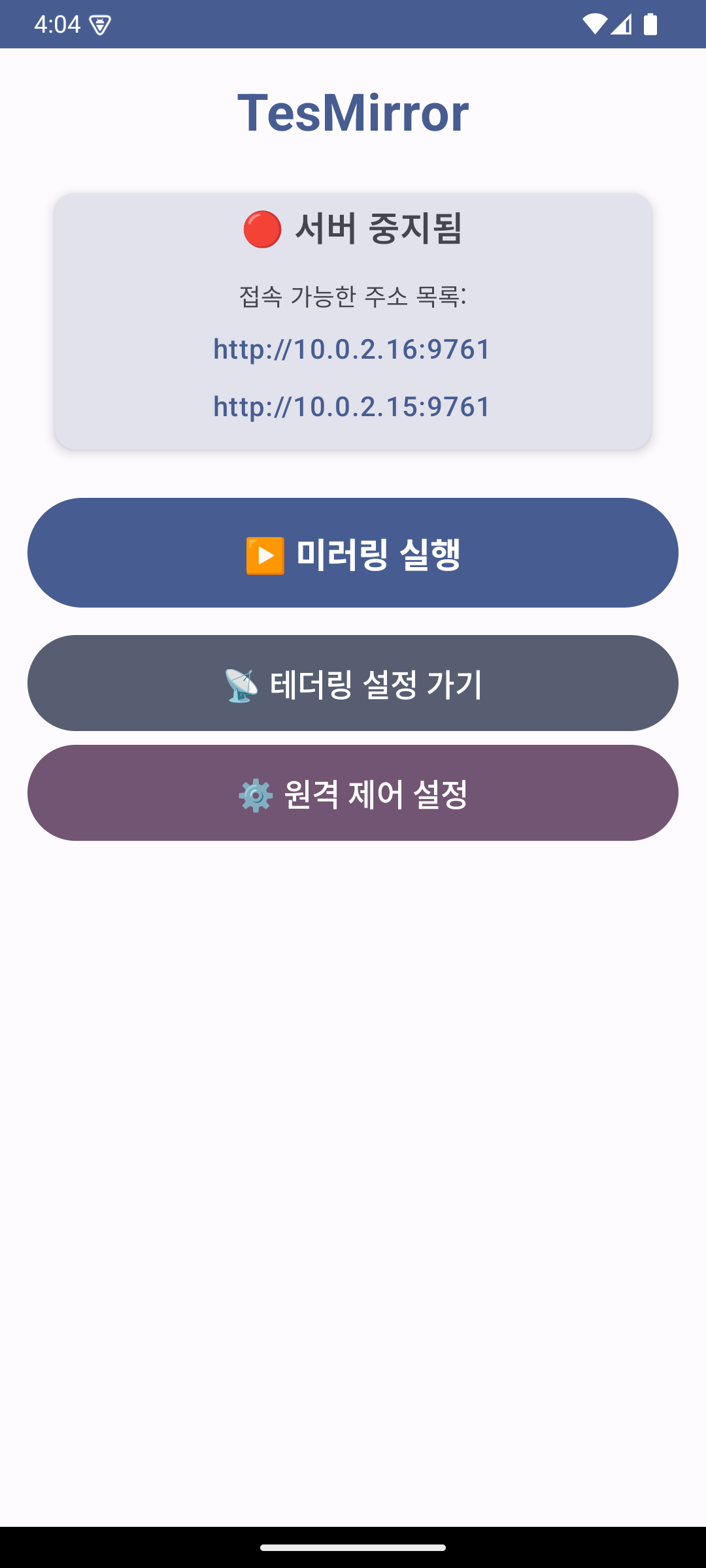
TesMirror app main screen - Start mirroring button and tethering settings shortcut
Requirements
Before starting mirroring, please check the following:
- Smartphone: Android 10 or higher
- Tesla Vehicle: Model S, Model 3, Model X, Model Y
- Network: Phone’s hotspot (tethering) function
Important: Your Tesla must be connected to your smartphone’s hotspot.
Initial Setup
A simple initial setup is required when using TesMirror for the first time. It takes about 3 minutes to complete.
Step 1: Install the App
Search for TesMirror on Google Play Store and install it.

Step 2: Grant Permissions
Please allow the permissions requested when launching the app:
- Screen recording permission (for mirroring)
- Accessibility service permission (for touch control)
- Notification permission
- Battery optimization exclusion (for uninterrupted mirroring in background)
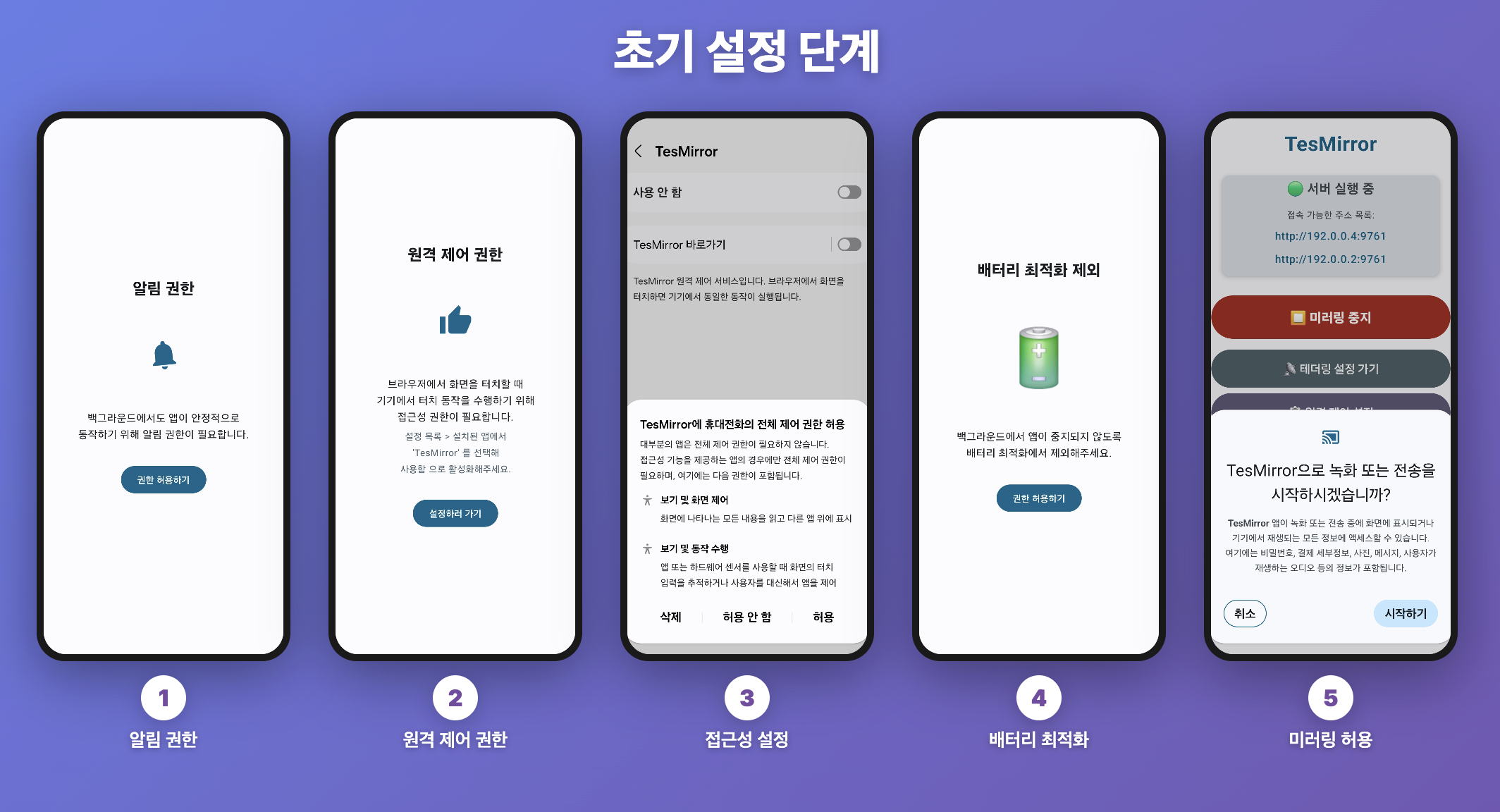
5-step initial setup: Notification permission → Remote control permission → Accessibility settings → Battery optimization exclusion → Mirroring permission
Step 3: Setup Complete
Once all permissions are granted, setup is complete.
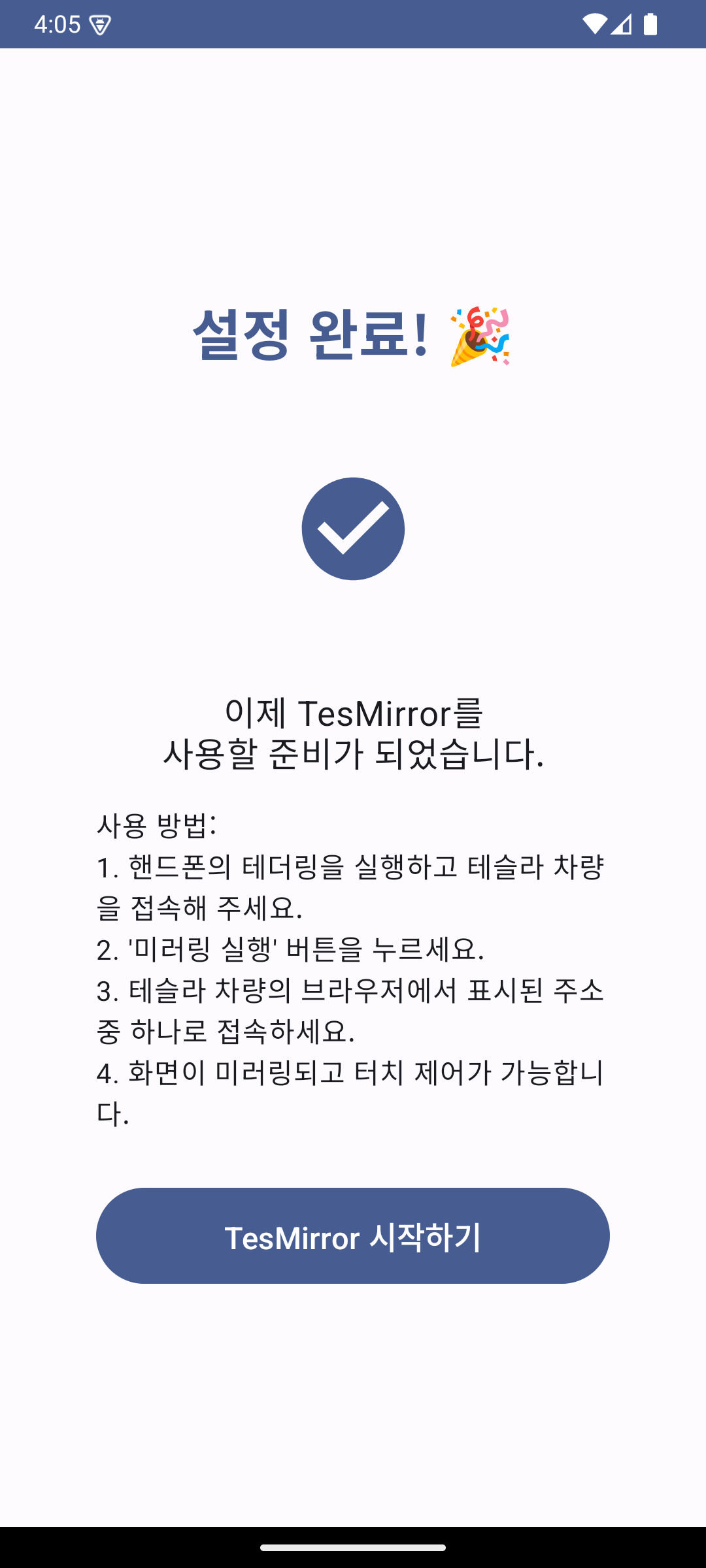
Setup complete screen - Brief usage instructions are displayed
How to Use (4 Steps)
Once initial setup is complete, you can start mirroring in 4 steps.
Step 1: Connect Tethering
- Turn on your smartphone’s hotspot (tethering)
- Connect to your smartphone’s hotspot in Tesla’s Wi-Fi settings
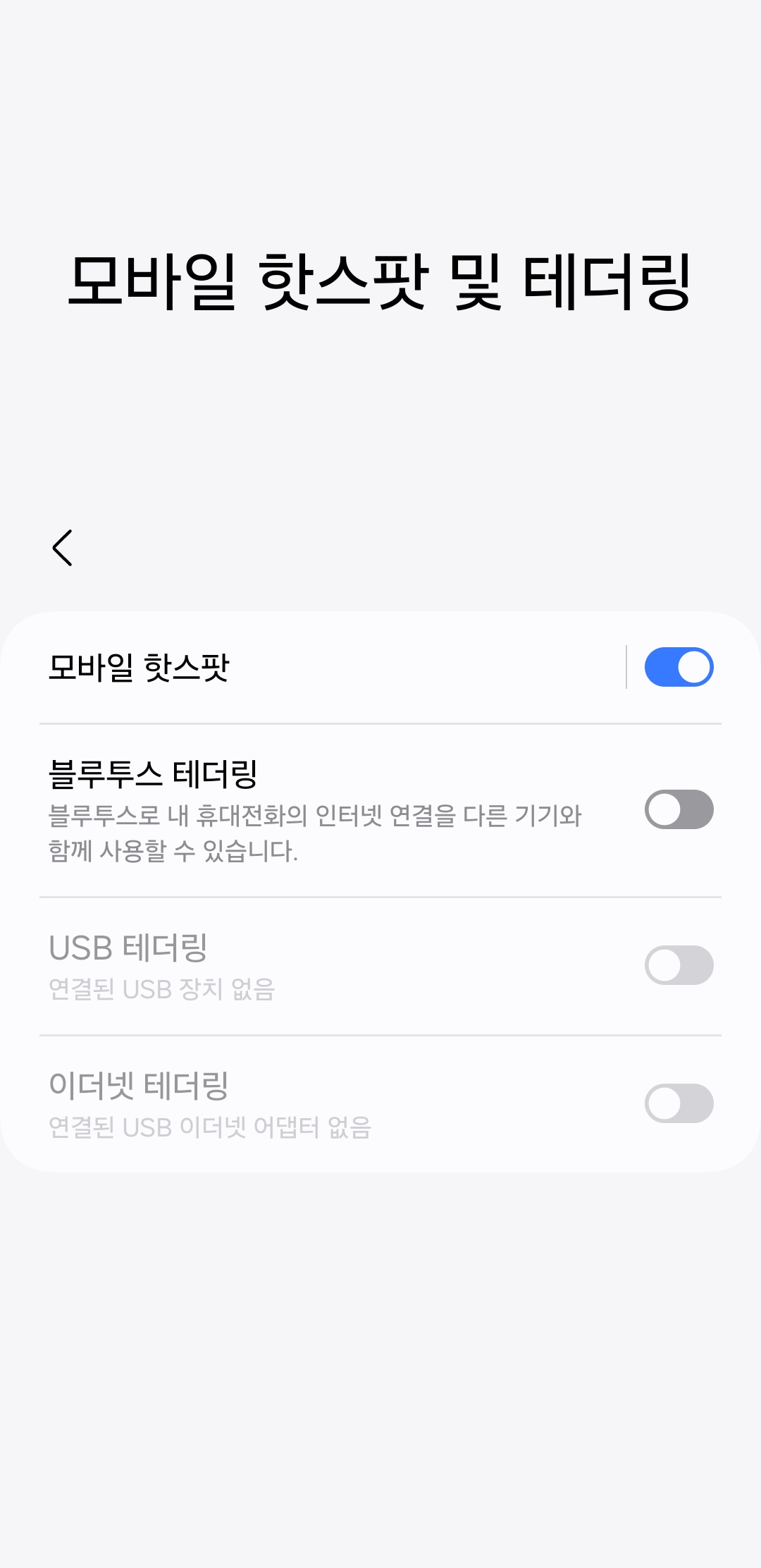
Turn on hotspot and connect Tesla
Tip: Tap the “Go to Tethering Settings” button in the app to go directly to hotspot settings.
Step 2: Start Mirroring
Open the TesMirror app and tap the Start Mirroring button.
Tap the “Start Mirroring” button in the app
When you press the button, the mirroring server starts and the connection address is displayed on screen.
Step 3: Enter Address in Tesla Browser
- Open the browser on Tesla’s screen
- Enter the address shown in the app (e.g.,
http://10.0.2.16:9761) - Tap the Go button
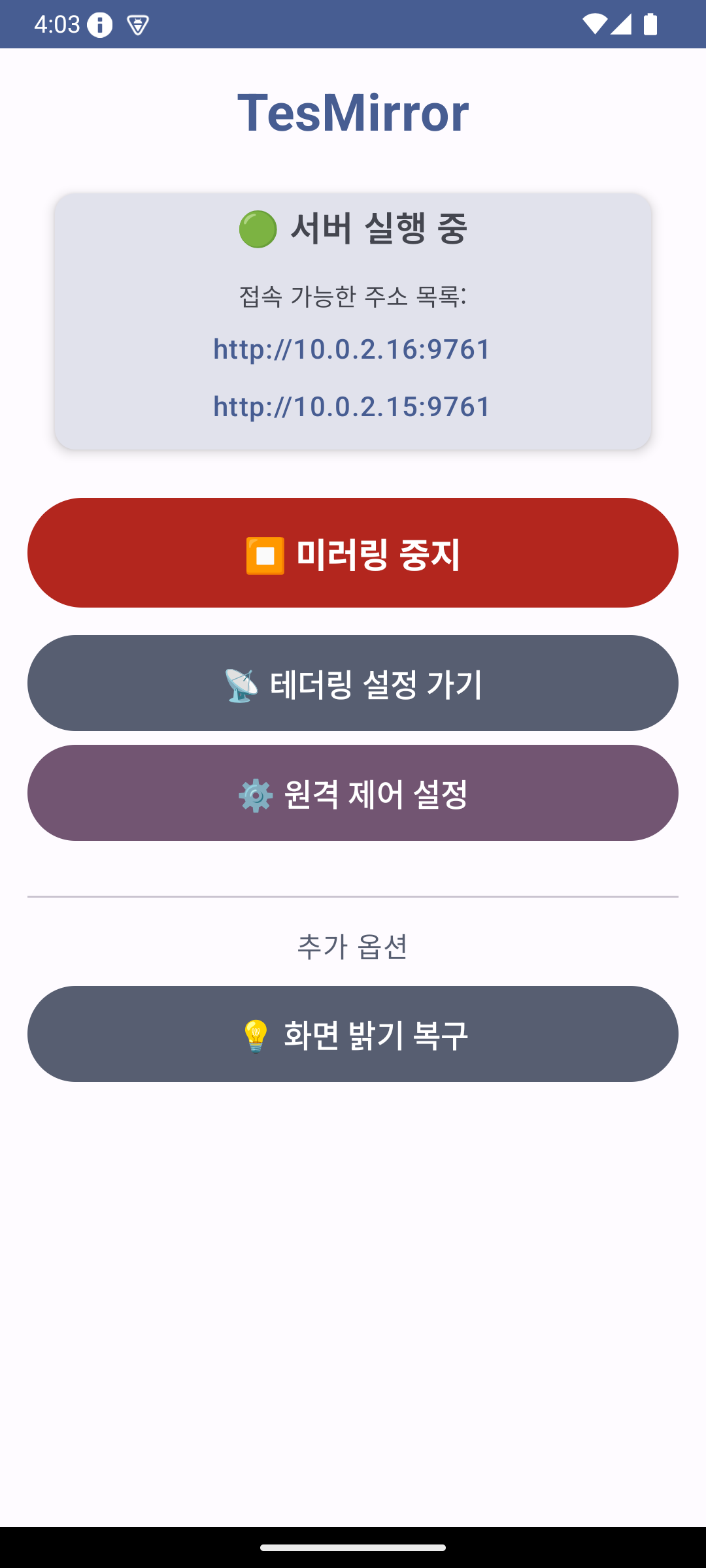
Server running - Enter the displayed address in Tesla’s browser
Step 4: Start Mirroring!
Once connected, your smartphone screen will be displayed on Tesla’s large screen.
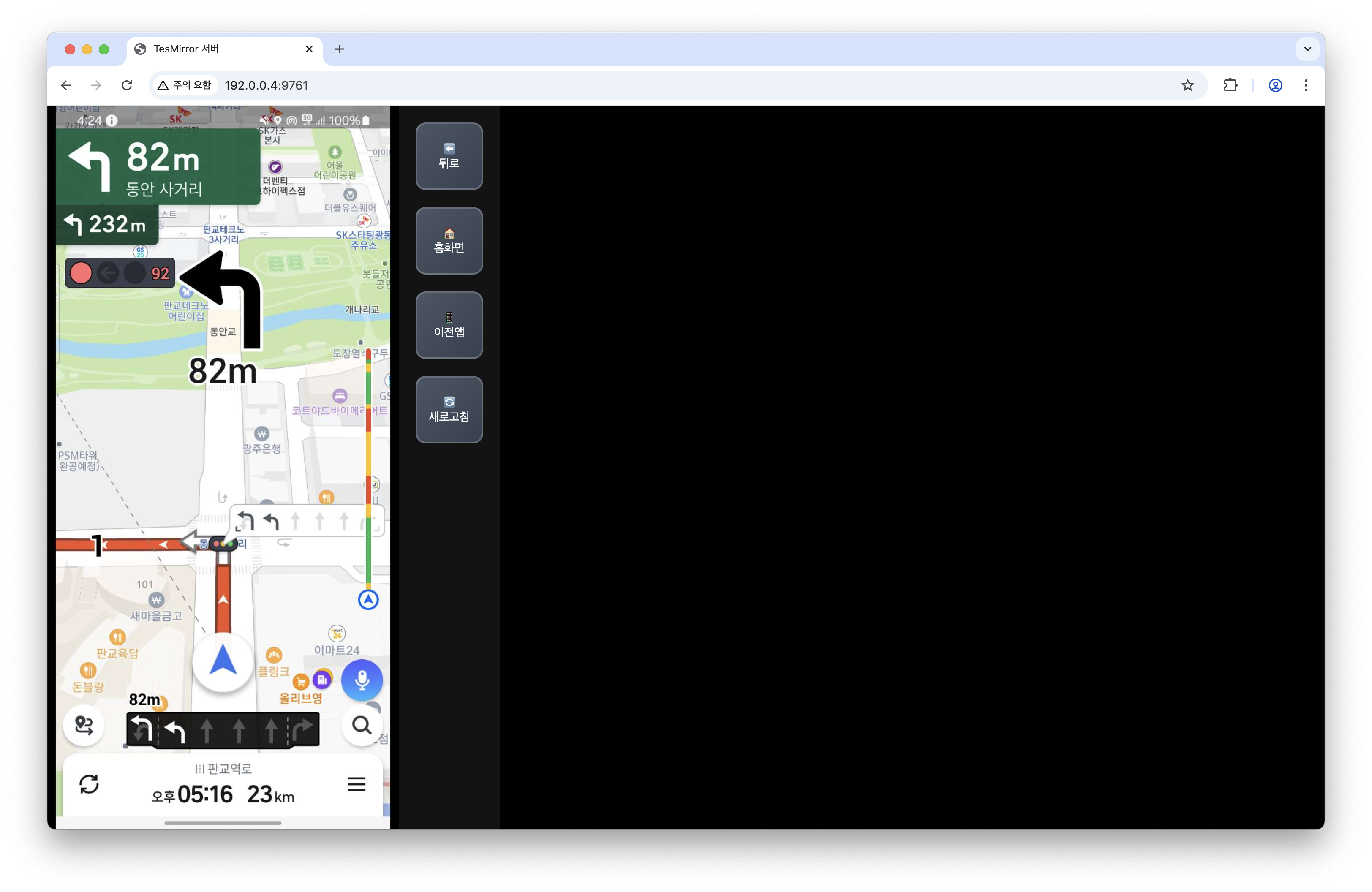
Smartphone screen mirrored on Tesla browser
Now you can control your smartphone by touching Tesla’s screen!
Key Features
1. One-Touch Mirroring
Start mirroring easily with just one button.
2. Touch Control
Control your smartphone directly from Tesla’s touchscreen.
Supported touch gestures:
- Tap: Screen touch
- Swipe: Scroll up/down/left/right
- Pinch Zoom: Zoom in/out with two fingers
3. Large Screen Navigation
View navigation apps bigger and clearer on Tesla’s 15-17 inch large screen.
Supported Devices
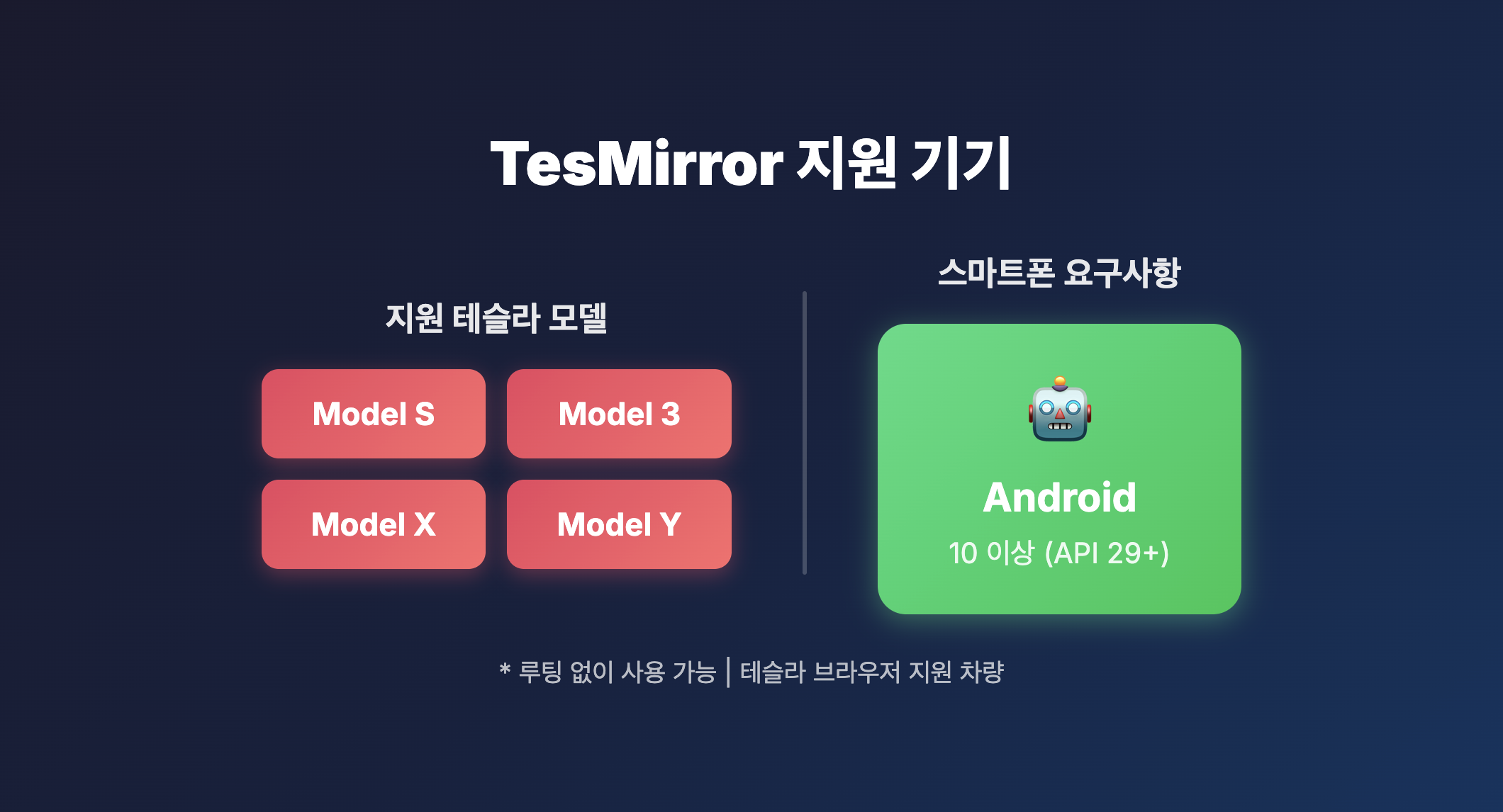
Supported Tesla Models
- Model S: O
- Model 3: O
- Model X: O
- Model Y: O
Smartphone Requirements
- Operating System: Android 10 or higher
- Recommended: Best performance on Android 12 or higher
FAQ
Q1: What should I do if I can’t connect?
A: Please check the following:
- Make sure Tesla is connected to your smartphone’s hotspot
- Make sure the hotspot is activated
- Restart the app and try again
Q2: What if the screen is choppy or slow?
A: The hotspot signal may be weak:
- Place your smartphone close to Tesla’s screen
- Disconnect other devices from the hotspot
Q3: Touch is not working
A: Make sure accessibility service permission is enabled:
- Phone Settings > Accessibility
- Find TesMirror
- Enable the service
Q4: Does it consume a lot of battery?
A: Battery usage increases due to the nature of screen mirroring. We recommend connecting to the vehicle charger for extended use.
Q5: Is rooting required?
A: No, TesMirror can be used without rooting.
Conclusion
Make the most of Tesla’s large screen with TesMirror! Enjoy navigation, videos, games, and various apps on a bigger and more convenient display.
Contact
For inquiries, please contact puppytigerstudio@gmail.com.