PuppyTigerStudio

PuppyTigerStudio 공식 홈페이지
Phase User Guide
| English | 한국어 |
Easily track your menstrual cycle and check your predicted period, fertile window, and ovulation day. Phase helps you maintain a healthy daily life.
Table of Contents
What is Phase?
Phase is an app that allows you to record and manage your menstrual cycle. Predictions become more accurate as you accumulate more records, and all data is stored only on your device for your privacy.
Key Features:
- Easy period start/end date tracking
- Automatic prediction of period, fertile window, and ovulation day
- Intuitive calendar view with color-coded indicators
- Period reminder notifications (same day to 7 days before, up to 8 notifications)
- PIN passcode and biometric authentication (fingerprint/Face ID) lock
- Automatic dark/light theme support (syncs with system settings)
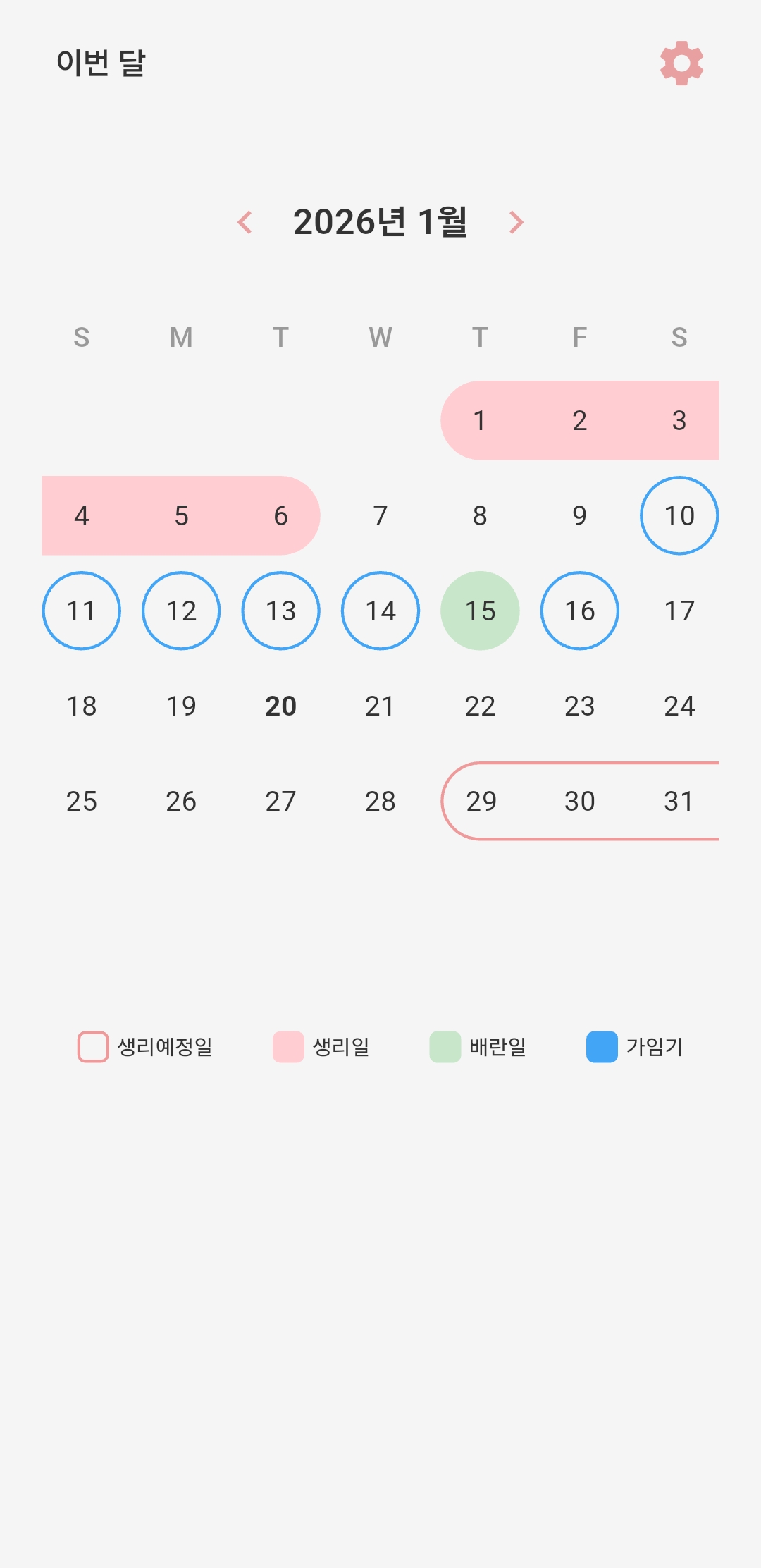
Home Screen — View your period, expected period, ovulation day, and fertile window at a glance on the calendar
Key Features
1. Menstrual Cycle Calendar
The calendar on the home screen shows your menstrual cycle information at a glance. Swipe left or right to navigate between months, and tap the “This Month” button at the top left to quickly return to the current month.
Calendar Color Guide:
- Pink background — Period days (actual recorded period)
- Pink border — Expected period (predicted next period)
- Light green background — Ovulation day (predicted ovulation)
- Blue border — Fertile window (predicted fertile period)
The legend at the bottom of the calendar shows the meaning of each color.
2. Period Tracking
Tap a date on the calendar to open the period input screen. Select Period Start or Period End and tap Save to record.
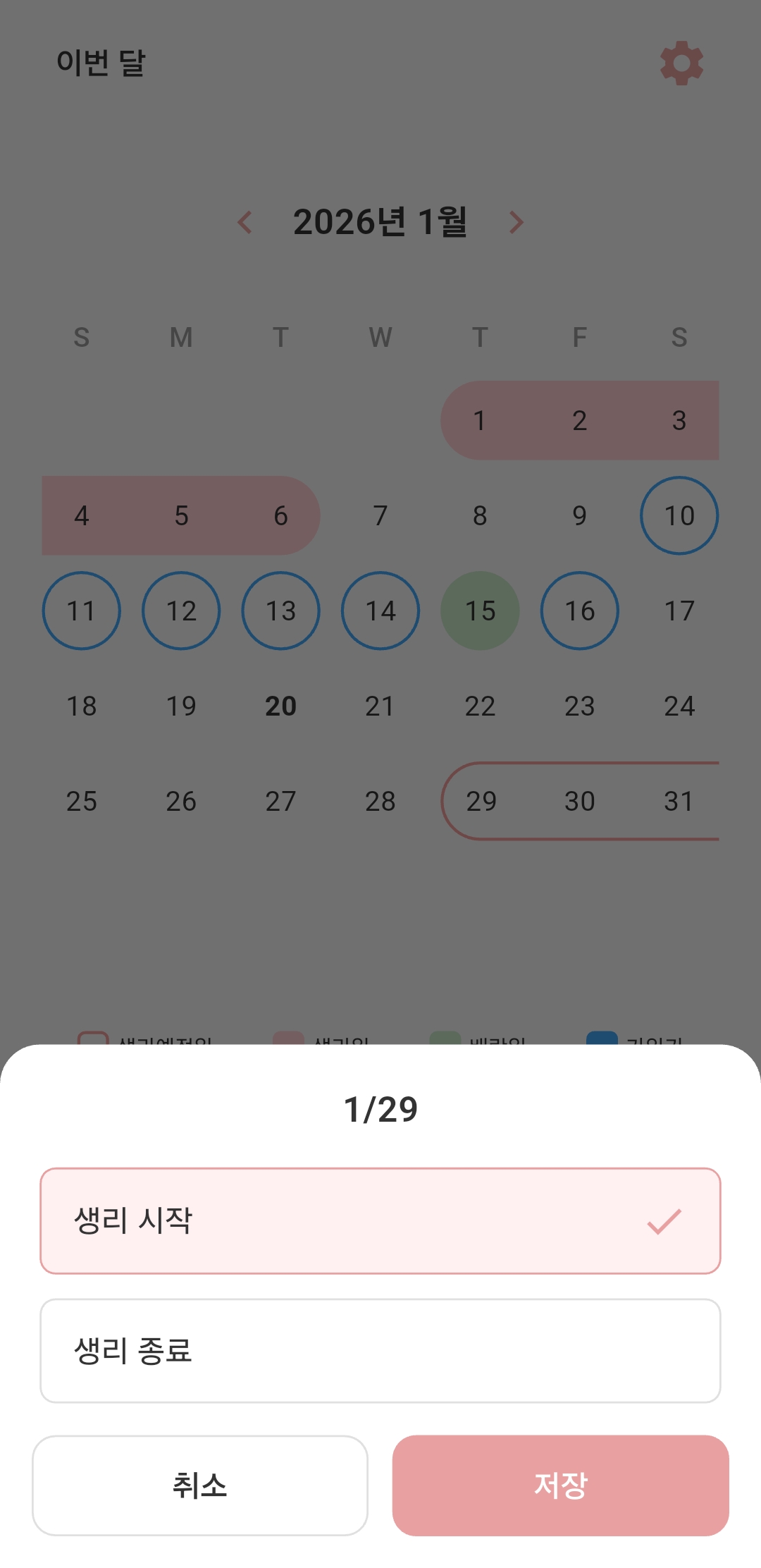
Period Input — Tap a date to open a bottom sheet where you can select period start/end
How to Record:
- Period Start: Tap the start date → Select “Period Start” → Save
- Period End: Tap the end date → Select “Period End” → Save
- Reset Period: Tap “Reset Period” on a date with an existing record to delete it
3. Cycle Prediction
Automatically predicts your next period based on recorded data. With at least 2 records, the app calculates your average cycle length for more accurate predictions.
Prediction Items:
- Next expected period: Most recent start date + average cycle length
- Expected ovulation day: Next expected period - 14 days
- Fertile window: Around the ovulation day (5 days before to 1 day after ovulation)
Predictions are displayed on the calendar up to 12 months ahead.
4. Auto-fill Period Duration
When you set your average period duration in settings, the end date is automatically calculated when you input a start date. No need to separately record the end date each time.
5. Notifications
Receive reminders before your expected period. You can set up to 8 individual notifications, from the same day to 7 days before.
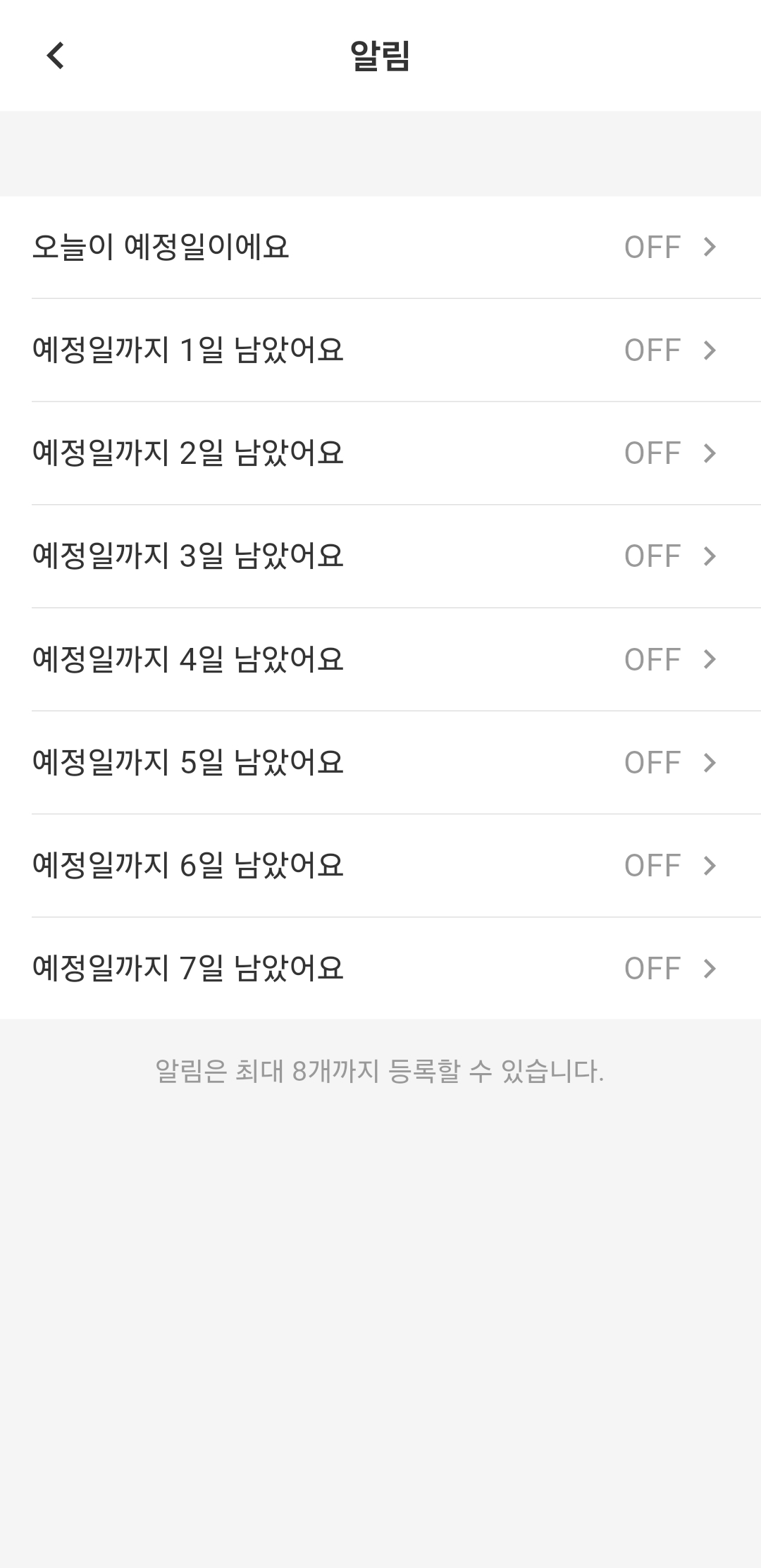
Notification Settings — Set up to 8 individual notifications from the same day to 7 days before
Notification Options:
- Today is the expected day
- 1 to 7 days until the expected day
Each notification can be individually turned ON/OFF, and you can customize the notification name and time.
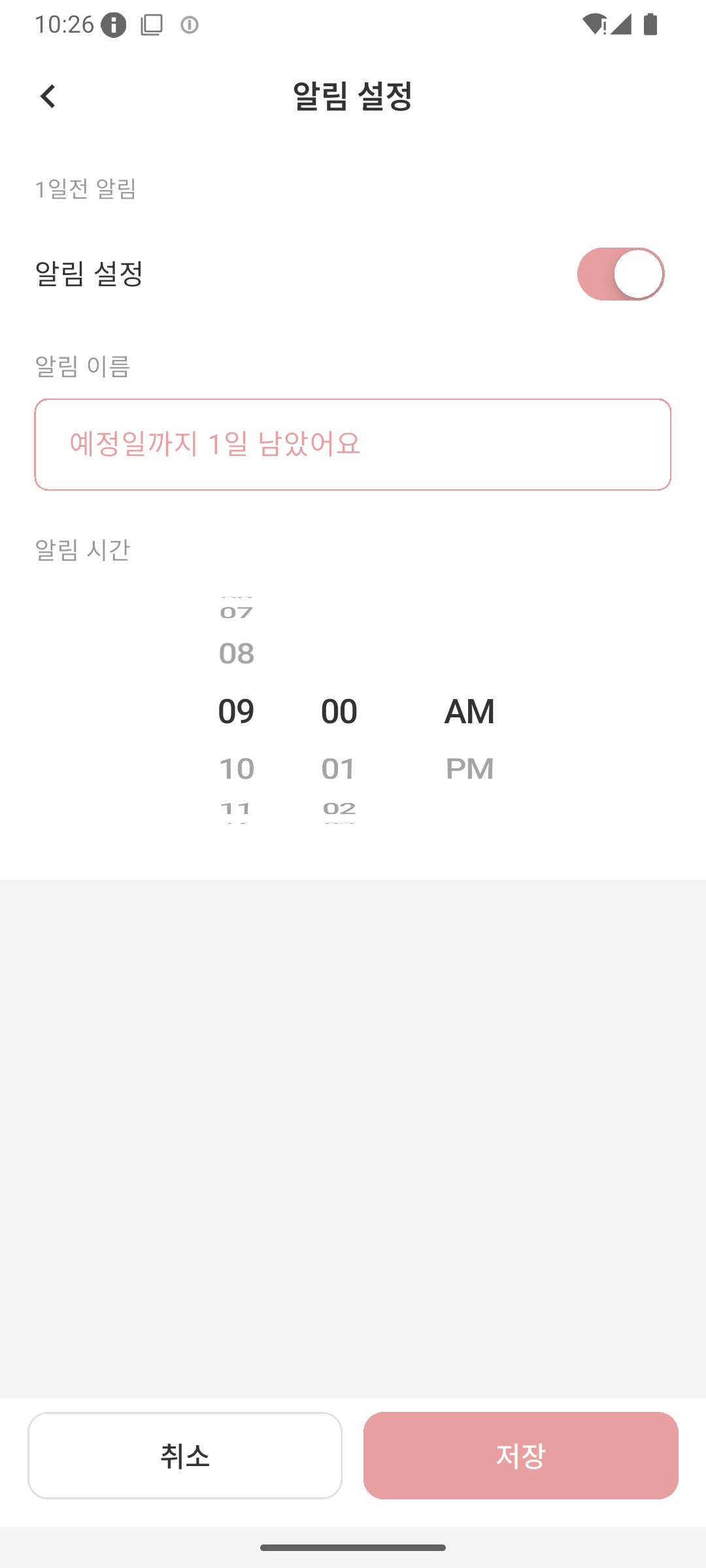
Notification Detail — Set ON/OFF, notification name, and notification time for each individual notification
6. Security Lock
Protect your privacy with the app lock feature.
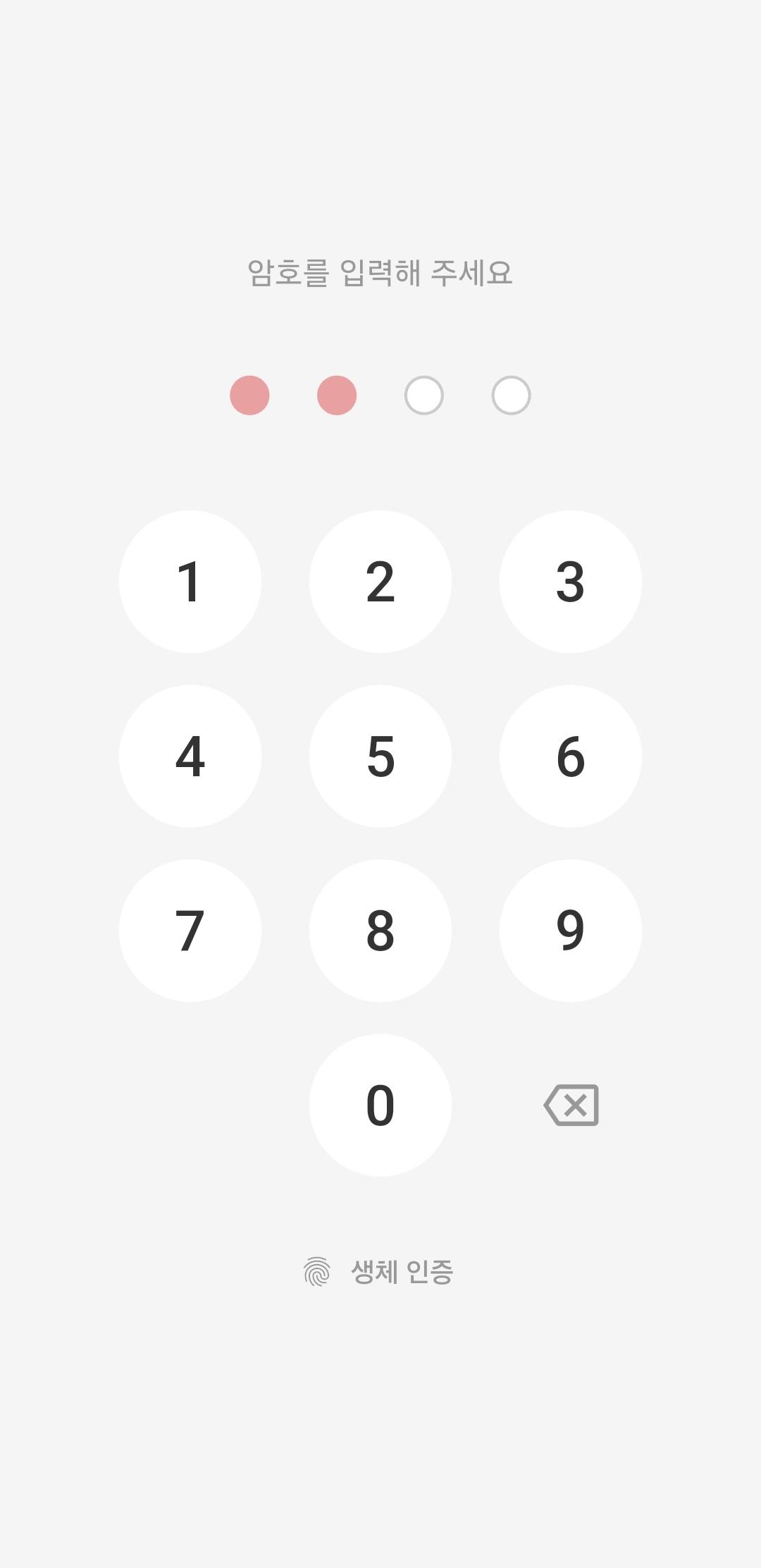
Lock Screen — Protect the app with a 4-digit PIN passcode or biometric authentication
Security Features:
- PIN Passcode: Set a 4-digit numeric passcode
- Biometric Authentication: Quickly unlock with fingerprint or Face ID
- The lock screen appears when launching the app, with biometric authentication attempted first
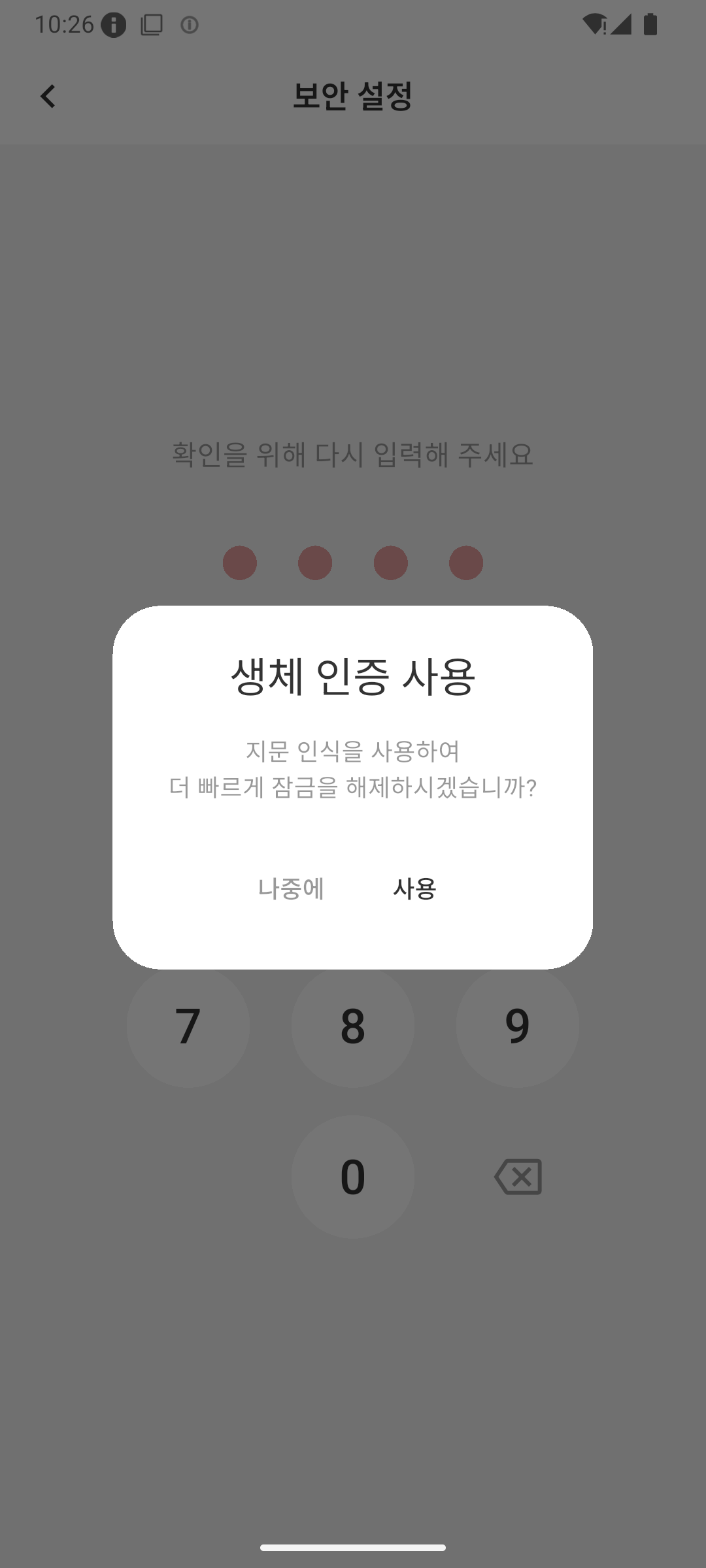
Security Setup — After setting your PIN, you can choose to enable biometric authentication
How to Use
Step 1: Install the App
Search for Phase on Google Play Store or Apple App Store and install it.
Step 2: Agree to Terms
When launching the app for the first time, you will see the terms of service and privacy policy agreement screen. You can tap each to review the details, then agree to proceed.
Step 3: Initial Setup (Onboarding)
The app guides you through step-by-step initial setup.
- Permission Request (Android): Allow notification permission and battery optimization exclusion for accurate notifications
- Last Period Start Date: Select the date your most recent period started on the calendar
- Period End Date: Select the date your period ended
- Average Cycle Length: Choose your average cycle length using the wheel picker (select “Not sure” for automatic calculation)
- Notification Setup: Choose when to receive period reminders
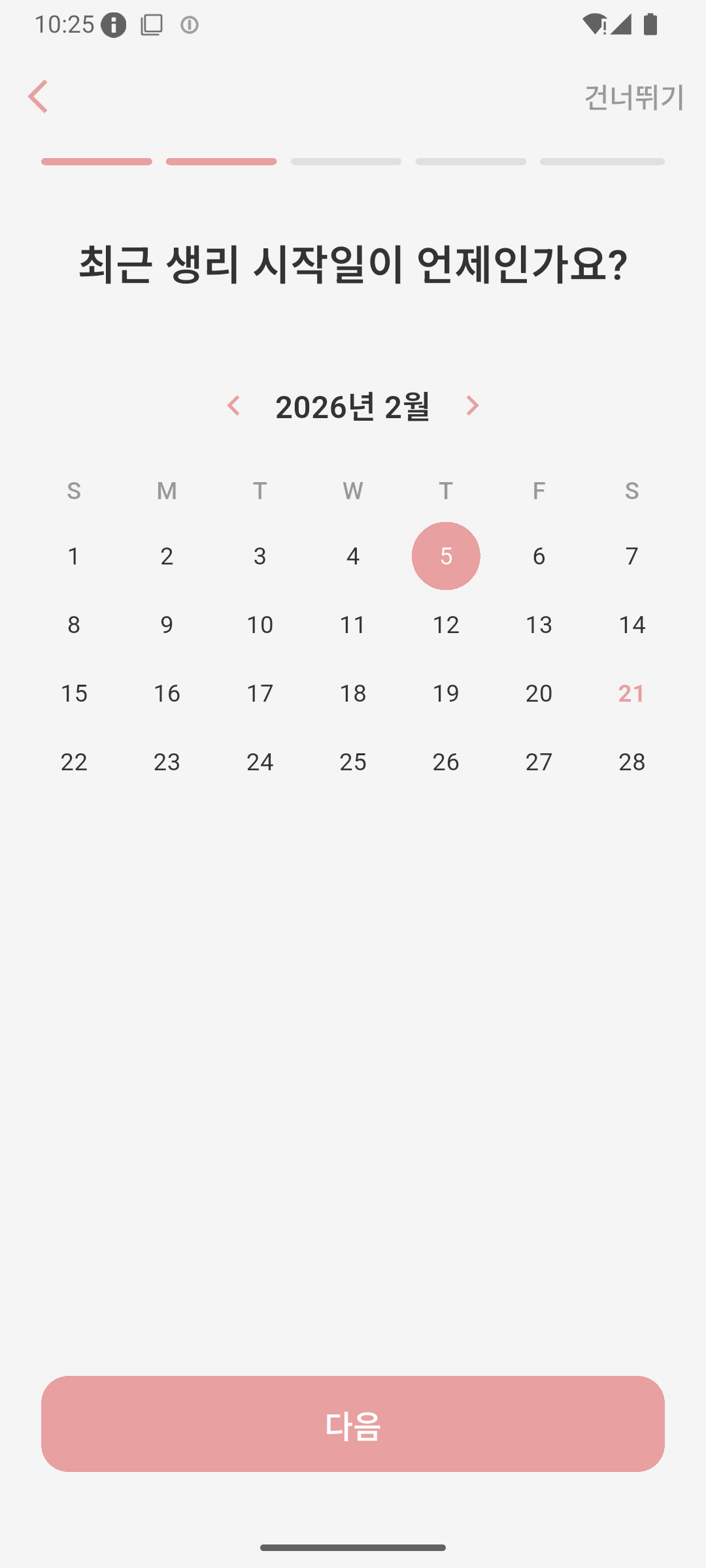
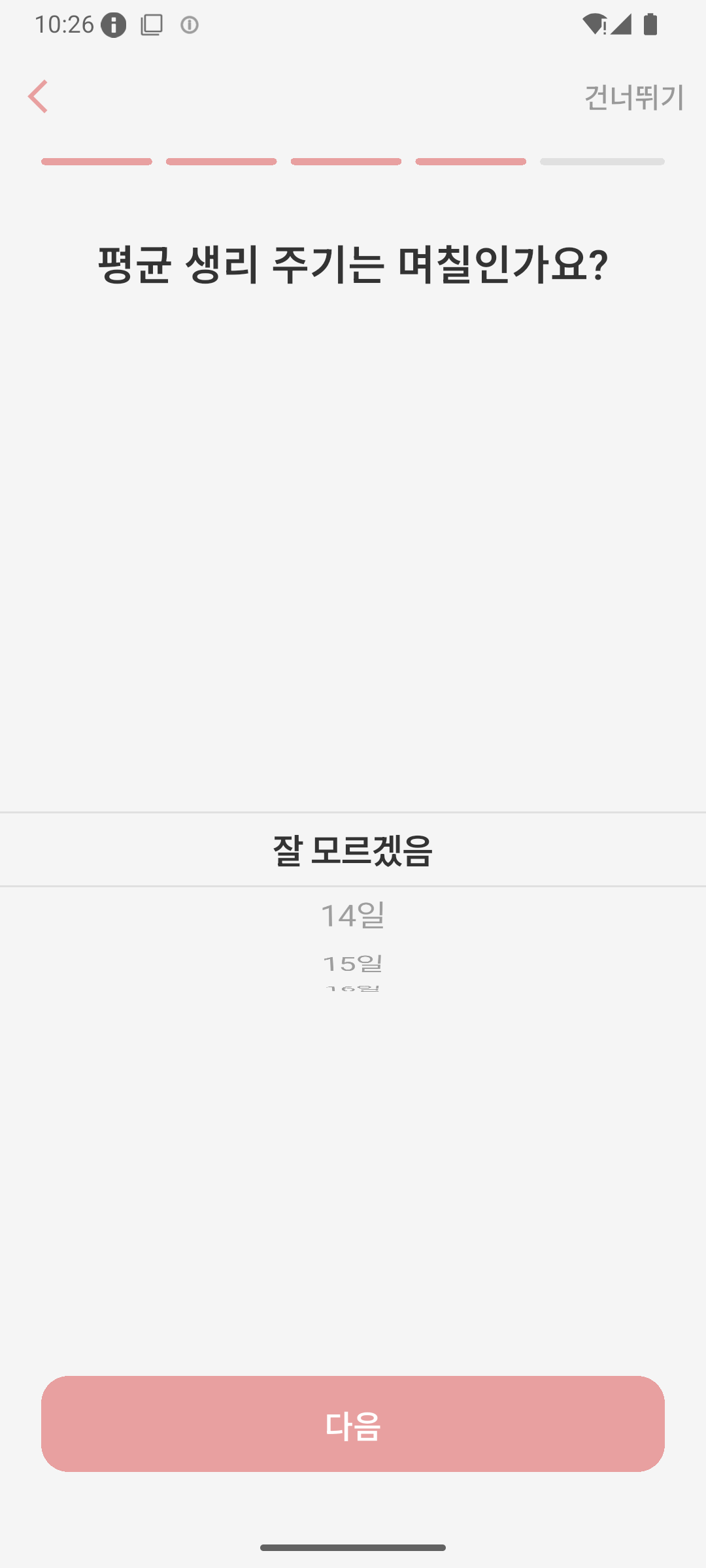
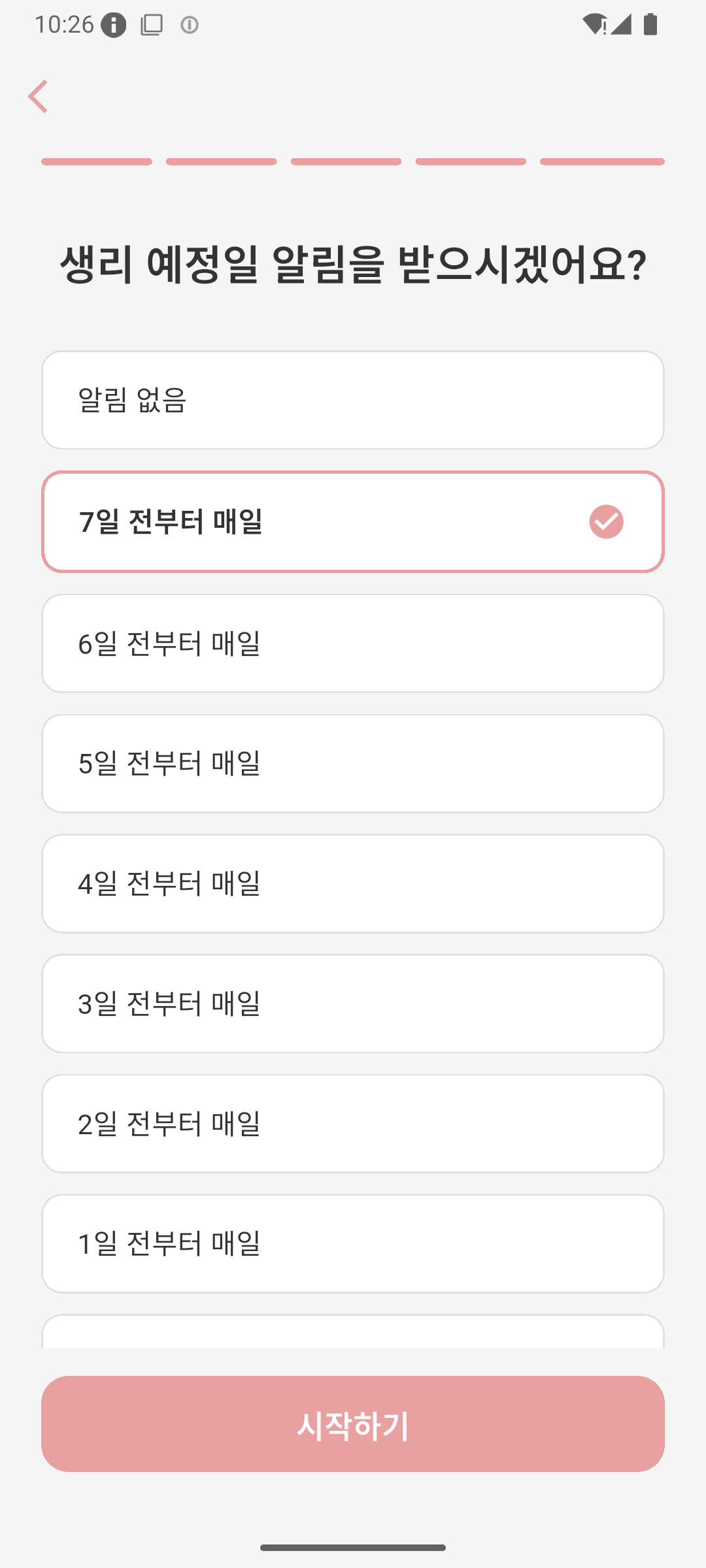
Left: Select last period start date / Center: Set average cycle length / Right: Notification setup
Step 4: Record Your Period
- Tap the date your period started on the home screen calendar
- Select “Period Start” in the bottom sheet
- Tap the Save button
- When your period ends, record the end date the same way
Step 5: Check Predictions
View your next expected period, fertile window, and ovulation day on the home screen calendar, distinguished by color. Swipe left or right to check predictions for previous or upcoming months.
Settings
Tap the gear icon at the top right to access the settings screen.
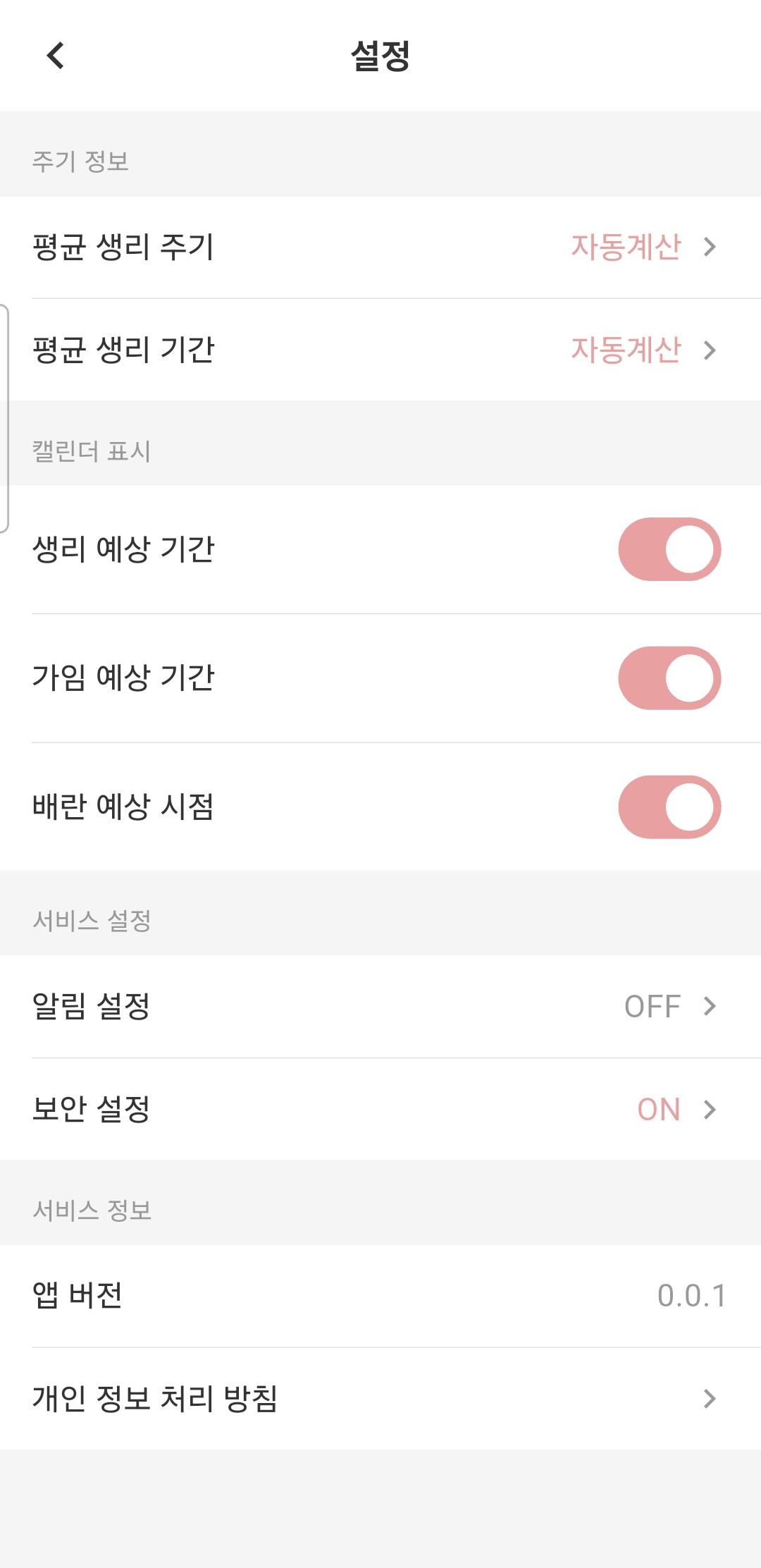
Settings — Manage cycle info, calendar display, and service settings
Cycle Info
- Average Cycle Length: “Auto-calculate” or manually set 14-60 days. Auto-calculate automatically computes the average from your recorded data
- Average Period Duration: “Not used” or manually set 1-14 days. When set, the end date is automatically filled when you enter a start date
Calendar Display
- Expected Period: Show/hide future predicted period ON/OFF
- Fertile Window: Show/hide fertile window ON/OFF
- Ovulation Day: Show/hide ovulation day ON/OFF
Service Settings
- Notification Settings: Navigate to the notification management screen
- Security Settings: Navigate to the PIN and biometric authentication settings
Service Info
- App Version: Currently installed app version
- Open Source Licenses: List of open source licenses used
- User Guide: This guide page
- Terms of Service: Service terms of use
- Privacy Policy: Privacy policy
FAQ
Q1: Where is my data stored?
A: All data is stored only on your device. It is not transmitted to external servers, so you can use the app with confidence.
Q2: Can I use this app if my cycle is irregular?
A: Yes, the prediction accuracy improves as you accumulate more records. With at least 2 records, the app automatically calculates your average cycle. You can also manually set the cycle length in settings if you prefer.
Q3: How do I set up notifications?
A: Go to Settings > Notification Settings, where you can individually turn ON/OFF up to 8 notifications from the same day to 7 days before your expected period. You can also customize each notification’s name and time.
Q4: How do I set up security lock?
A: Go to Settings > Security Settings and set a 4-digit PIN passcode. After setting the PIN, if your device supports biometric authentication, you can choose to use fingerprint or Face ID.
Q5: What if I forget my passcode?
A: For security reasons, passcode recovery is not available. If you forget your passcode, you will need to uninstall and reinstall the app. Please note that all existing data will be reset.
Q6: How do I use the auto-fill period duration?
A: Set your desired number of days in Settings > Average Period Duration. After that, just recording the start date will automatically fill in the end date.
Q7: Can I hide ovulation or fertile window on the calendar?
A: Yes, you can individually toggle ON/OFF the expected period, fertile window, and ovulation day display in Settings > Calendar Display.
Q8: How do I correct a wrongly recorded date?
A: Tap the recorded date on the calendar and select “Reset Period” to delete the record. Then record the correct date again.
Contact
If you have any questions, please contact us at puppytigerstudio@gmail.com.